

 MINECRAFT HOSTING
  HYTALE HOSTING
 Game Instances let you save multiple games on one server and switch between them instantly - no data loss, no reinstalling. Think of each instance as a saved slot for a different game, modpack, or world.
Accessing Game Swap
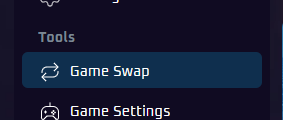
In your game panel, open the Game Swap menu from the left sidebar.
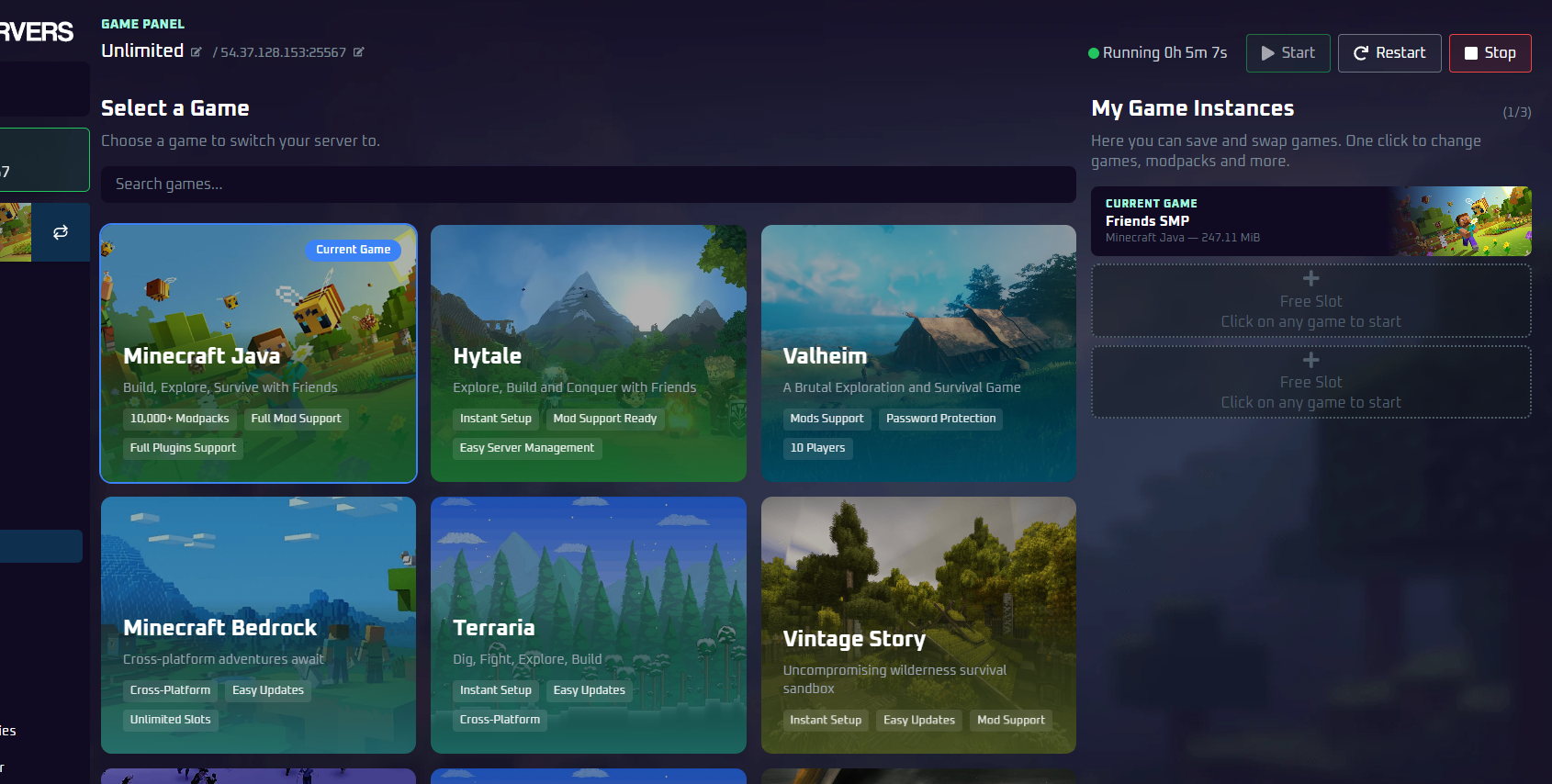
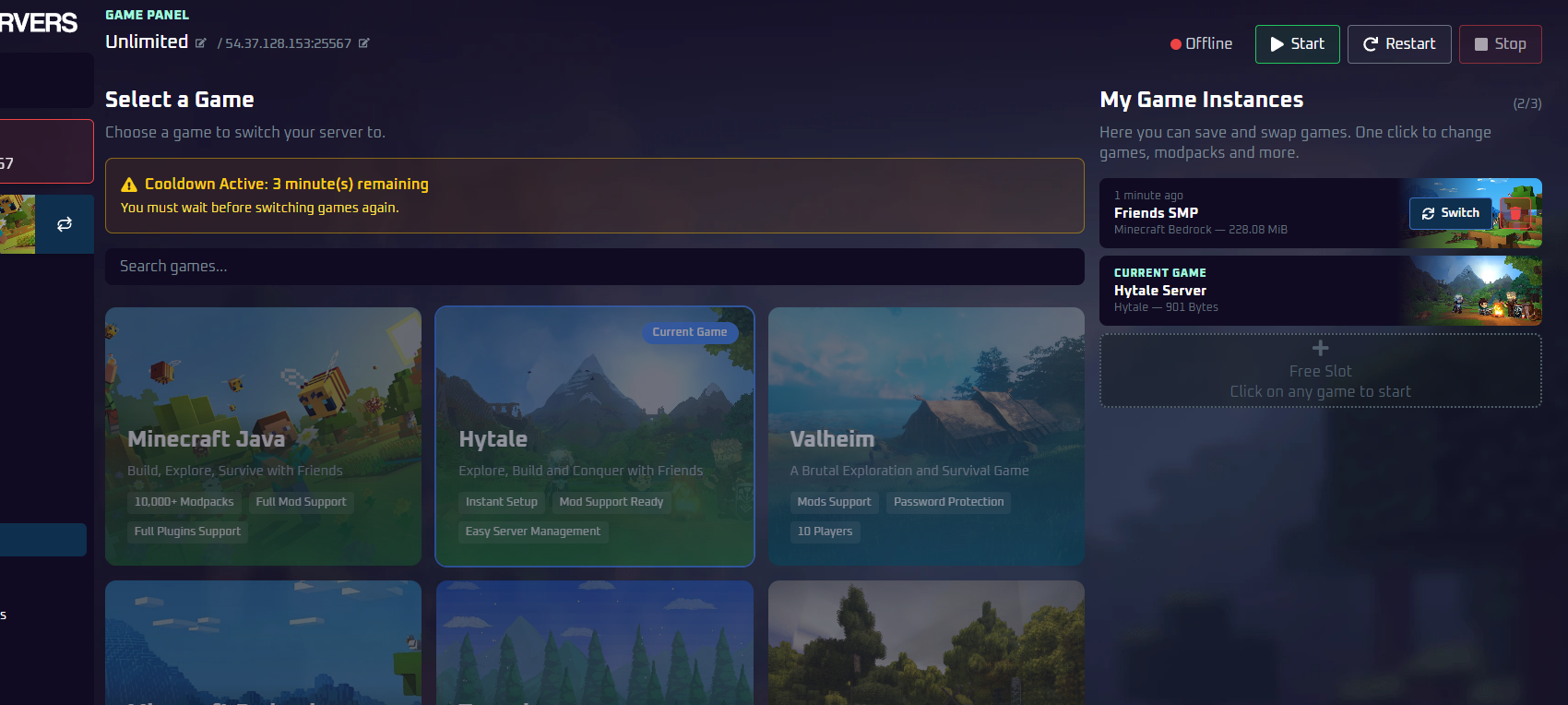
The page is split into two sections: Select a Game on the left where you pick what to install, and My Game Instances on the right where your saved instances are listed.
Creating Your First Instance
Click any game card to start the switch process. A dialog will appear asking what to do with your current files.
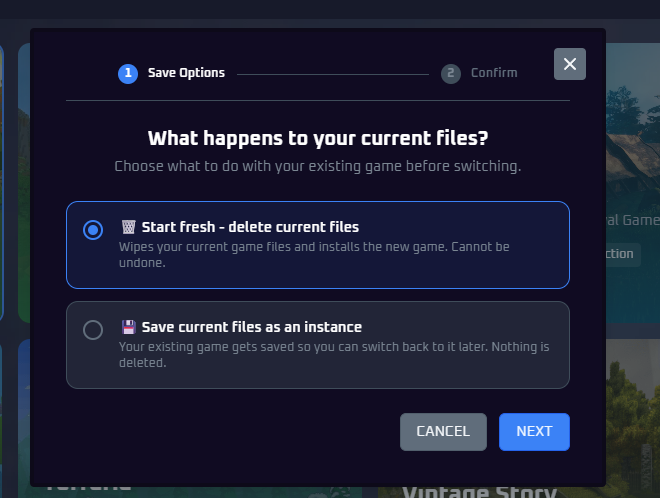
You have two options:
- Start fresh - deletes your current files and installs the new game. This cannot be undone.
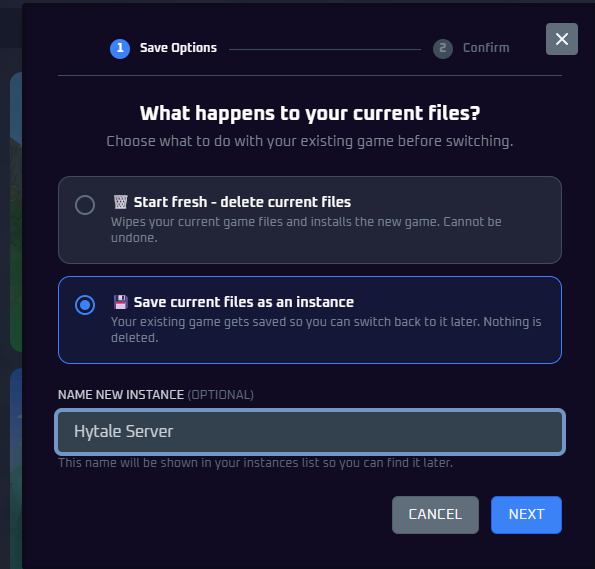
- Save current files as an instance - saves your current game into an instance slot so you can switch back later. Nothing is deleted.
If you choose to save, you can optionally give the new instance a name so you can identify it later.
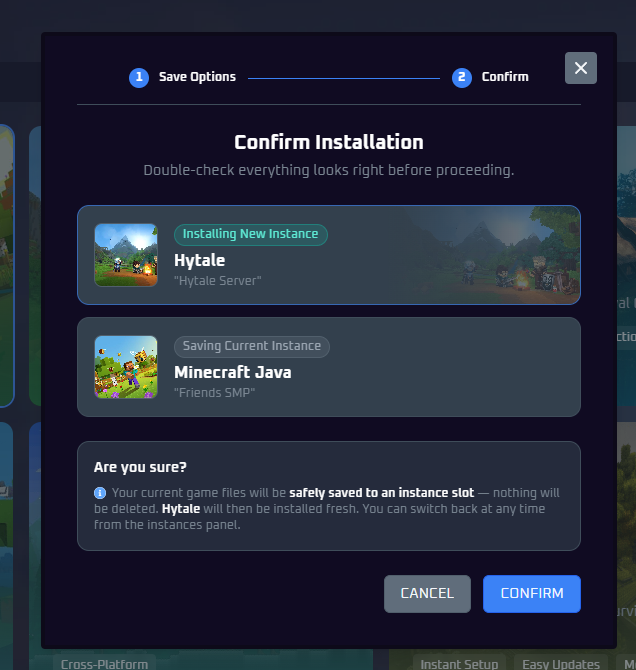
On the next screen, confirm the details look correct and click Confirm to proceed.
Switching Between Instances
Once you have multiple instances saved, they appear in the My Game Instances panel. Click Switch next to any instance to activate it.
Waiting for the Switch
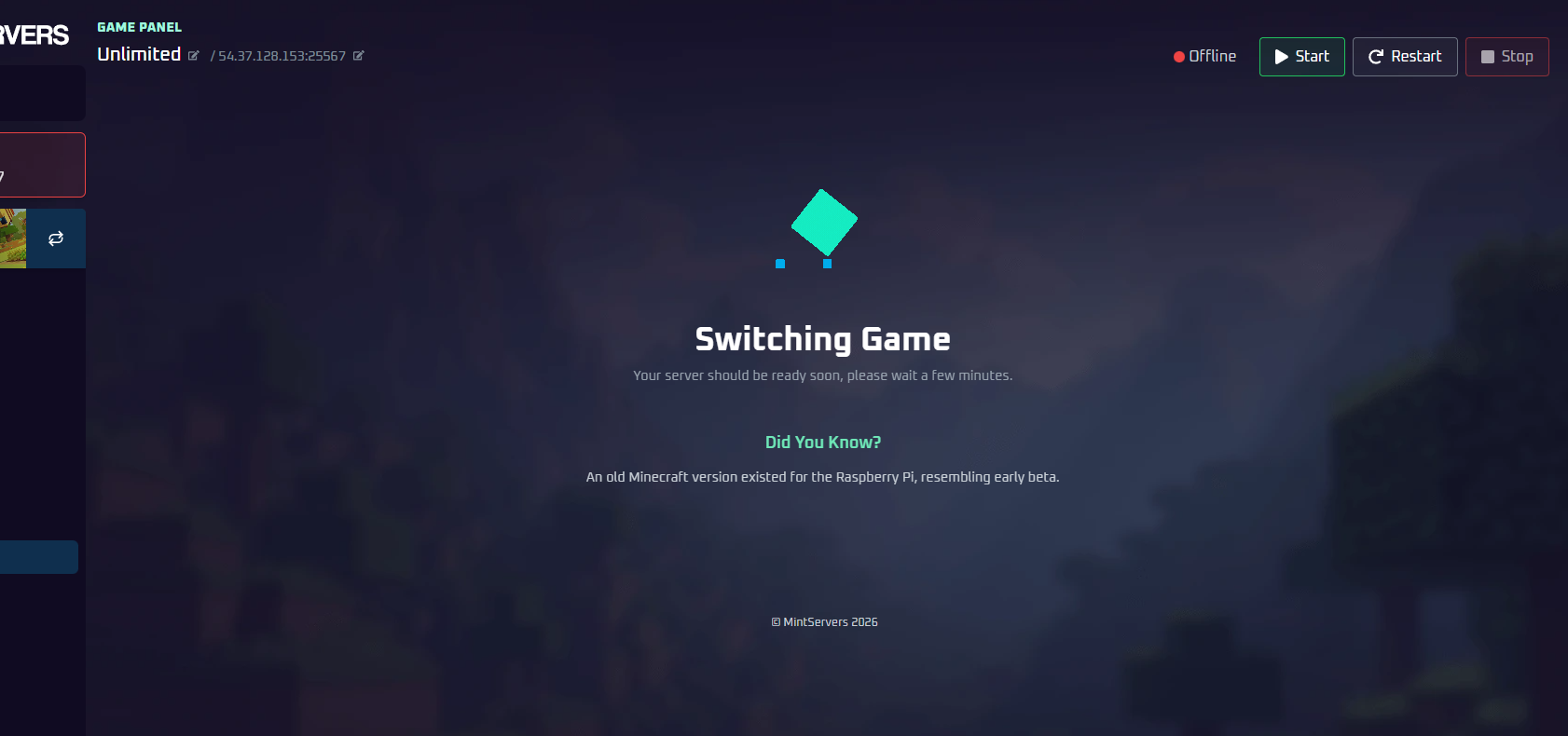
After confirming, the switching process begins. Your panel will show a loading screen - this can take anywhere from 15 seconds to a few minutes depending on file size. Do not start your server until it completes.
Deleting an Instance
To free up a slot, click the trash icon on any inactive instance. You will be asked to confirm before anything is deleted.
Cooldown Period
After switching games, there is a short cooldown before you can switch again. The remaining time is shown at the top of the Game Swap page.